Monday, 10 February 2014

How to form dynamic hyperlink URL for email Template in CRM 2011

Problem:  How to form dynamic URL in email Template.

Solution:

I had a situation in which my workflow had to kick off emails to the sales Rep and those email contain the URL to the record. Now I had to form that URL at run-time grabbing the Guid of the record.

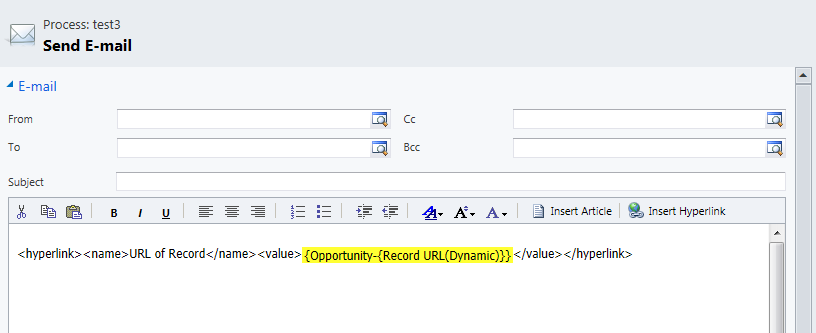
You can achieve this by two way either you can use the "Insert hyperlink" option available in design template as shown below or form URL on your own discuss later in this article:


Once the hyperlink window is opened you can fill the name you want to show and select the “Record URL(Dynamic)” as value and hit ok.


So now when the email is generated you get the link to opportunity record.

But if you want to form the URL dynamically say to open other record or open outlook or link to some another page etc. then you need to form hyperlink on your own.

For example I want to set URL for another record not opportunity from this email template. To achieve this task we will grab the tags that are generated by "Insert hyperlink" option and then edit the values inside it according to our requirements.

<hyperlink>
    <name>
    </name>
    <value>
    </value>
</hyperlink>

This is the basic tags now we will fill the data inside this tag as per our requirements.
<hyperlink>
    <name> URL to Another entity</name>
    <value>https://servername/OrganizationName/userdefined/edit.aspx?etc=10033&id={Guid Of Parent Entity(GetGuidOfParentEntity)}</value>
</hyperlink>

Here I am grabbing the guid of Parent entity by custom workflow utility. 10033 is the entity code for the entity whose record I want to pull out. You can replace servername and organizationName according to your structure.

Thanks,

Friday, 7 February 2014

How to grab the entity code for specific entities.

Problem:  How to grab the entity code for specific entities.

Solution:


Sometimes you need entity code in CRM 2011 to form the URL or for any other purpose. For that you can write following query to your SQL Server to grab the entity code given the entity name:

select ObjectTypeCode,LogicalName
from EntityLogicalView
where LogicalName like 'yourEntityName%'
  
EntityLogicalView table stores all entity related information.


Thanks,

CRM 2011 graph display error message: Maximum Record Limit is exceeded

Problem:  when chart is displayed in CRM 2011 we get an error message.

Solution:
Sometimes when chart get displayed in CRM 2011 you get error message indicating that “Maximum record limit is exceeded. Reduce the number of records."

This error is because in SQL Server there is max record limit set for charts to display data. This means, query that you placed for charts is grabbing more data than max record limit and so you end up getting this error.

To resolve this issue either you need to change your query to grab lesser data or if that is not possible you need to increase the max record limit in SQL Server.

If you want to increase the max record limit in SQL Server than you need to update Deployment Properties table in MSCRM_CONFIG database.

you can execute following query:

update MSCRM_CONFIG.dbo.DeploymentProperties
set IntColumn = 10000000
where ColumnName = 'AggregateQueryRecordLimit'

  
Thanks,

Monday, 3 February 2014

Get Started Pane showing up error message.

Problem:  Get Started Pane in CRM 2011 showing up error message.

Solution:
Sometimes when you update the system or change the port you can end up with error getting displayed in the “Get started Pane” in CRM. For example you changed the port i.e. moved from http to https.

In you SQL Server there is database name “MSCRM_CONFIG” that contains ConfigSettings table. This table has field named “HelpServerUrl”. This field might not be updated or contain correct URL and that might be the cause of error in your Get Started Pane.

Update the value in “HelpServerUrl” field to correct URL and port. I mean if you moved from http to https then you need to give the correct webserver URL and port.

After changing URL perform IIS reset and you should get rid of error.

Thanks,

Friday, 11 October 2013

How to customize the ribbon on Form to hide button in CRM 2011.

Problem:  Came across the situation in which I want to hide a button on Form.

Solution:

To solve this issue either you can write javascript to hide button or customize the ribbon. I realized the good way to achieve this task was to customize the ribbon.

a) If we want to hide the button on the MainTab of entity then the process is simple as follows:
  1.     Create the empty solution and add the entity from which you want to remove the button (for eg. Accounts)
  2.     Export the solution, unzip and open Customization.xml.
  3.     Locate “RibbonDiffXml”. Write the following code inside the node.
            <RibbonDiffXml>
                     <CustomActions>
                            <HideCustomAction Location="Mscrm.Form.account.Assign"       
                                                            HideActionId="form.HideAction" />

                    </CustomActions>

          Here location indicates the button that you want to hide. We have taken an example to hide “Assign” button on MainTab.

       4.  Save the file.
       5.  Zip the solution, Import and Publish the changes.

b)  But what If we want to hide button on the subgrid section. Say we have “TestEntity” related to Accounts and I want to hide the buttons which says “Add new TestEntity”.

       1. Create empty solution and export “TestEntity”.
       2. Open Customization.xml and locate “RibbonDiffXml”.
       3. Include the following code inside the node.

             <RibbonDiffXml>
                      <CustomActions>
                              <HideCustomAction Location="Mscrm.SubGrid.TestEntity.AddNewStandard"
                                                              HideActionId="Subgrid.HideAction" />
                      </CustomActions>

        So this action will hide the button from subgrid of all entities related with “TestEntity”.

       4. Save the file.
       5. Zip the solution, Import and Publish the changes.

Thanks,

Thursday, 10 October 2013

Adding a custom tooltip to CRM 2011 entity field

Problem: I had requirement from user to add custom tooltip to drop down list (OptionSet) field on Entity form in CRM 2011.

Solution:

I knew that we have default tooltip for each option with in the OptionSet but here user wanted to have custom tooltip. So I had to write JavaScript to achieve this task.

On form load event you need to write following code to add the custom tooltip

crmForm.all.dropdownlistName.childNodes[0].title = 'Text to be displayed in tooltip';

So above code will display tooltip for the first option in OptionSet. Similarly you can add tooltip to any field on Entity form in CRM 2011.

This method works fine for me on CRM 2011 Rollup 13.

Thanks,

Friday, 4 October 2013

Using SqlBulkcopy Object to insert large data into database.

Problem:  I had a situation in which we want to copy the data from log files to database. So first challenge was to parse the log files and second to insert them in database.

Solution:

The solution, I choose was to first parse the files and insert the data into a DataTable and then send the datatable to SqlBulkcopy object which inserts the whole datatable into database Table. SqlBulkCopy is more efficient compared to executing multiple insert statements to database when volume of data to insert is large.

1.      So First step is to create a DataTable and define columns for it. However, it is not mandatory to define the column name and size.

DataTable dTable = new DataTable();

       DataColumn dc;
       dc = new DataColumn("FilePath");
       dc.DataType = System.Type.GetType("System.String");
       dc.MaxLength = 250;
dTable.Columns.Add(dc);

      dc = new DataColumn("DateTime");
      dc.DataType = System.Type.GetType("System.String");
      dTable.Columns.Add(dc);

      dc = new DataColumn("UserName");
      dc.DataType = System.Type.GetType("System.String");
      dc.MaxLength = 50;
      dTable.Columns.Add(dc);

     
2.       Next Step is to add the rows into the datatable that contains the data you want to insert into database.
DataRow newRow = dTable.NewRow();
       newRow[0] = file.Name;
       newRow[1] = file.createdDate;
       newRow[2] = userloggedin;
      
       dTable.Rows.Add(newRow);

3.      Once the data is populated in datatable you can define your SqlBulkcopy object.

//Get the connection string to connect to database
 String ConnectionString = ConfigurationManager.AppSettings["DataBaseConnString"];

//create connection object
        using (SqlConnection conn = new SqlConnection(ConnectionString)) 
        {
          SqlBulkCopy bulkCpy = new SqlBulkCopy(
                                                  conn,
                                                  SqlBulkCopyOptions.TableLock |
                                                  SqlBulkCopyOptions.FireTriggers |
                                                  SqlBulkCopyOptions.UseInternalTransaction,
                                                  null
                                               );

   bulkCpy.DestinationTableName = "databaseTableName"; //Table in which you need to insert data

          //Not mandatory. Required only if you want to divide the insert operation into batches.
   bulkCpy.BatchSize = 1000;

          bulkCpy.ColumnMappings.Add(new SqlBulkCopyColumnMapping("FilePath", "FilePath"));
          bulkCpy.ColumnMappings.Add(new SqlBulkCopyColumnMapping("DateTime", "DateTime"));
          bulkCpy.ColumnMappings.Add(new SqlBulkCopyColumnMapping("UserName", "UserName"));
          conn.Open(); //open  database connection

          bulkCpy.WriteToServer(dTable); //Statement writes the contents of datatable to database.
          dTable.Clear();
          conn.Close();         
      }
              
·         To sqlBulkcopy we pass connection object and set of SqlBulkCopyOptions – this are flags that indicates different setting sql server will use while inserting data into database. (you can refer msdn for more details on this options)
                                                 i.            SqlBulkCopyOptions.TableLock - indicates to lock table during operation.
                                               ii.            SqlBulkCopyOptions.FireTriggers – fires triggers when row is inserted.
                                             iii.            SqlBulkCopyOptions.UseInternalTransaction – indicate that each batch will perform as transaction.
·         Last parameter takes SqlTransaction object which we set to null.

·         You can avoid SqlBulkCopyColumnMapping. It is needed only when the number of columns you are passing into datatable is less than number of columns in database Table.

Thanks,

How assigning Activate/Deactivate permissions to user in Microsoft Dynamics CRM 2011

Problem:  I had a situation in which we wanted to prevent any random user to activate or deactivate record on certain entity. We wanted only people with specific roles to have permission to activate or deactivate the record.

Solution:

After doing my research I realized that you don’t have direct way to give permission in CRM 2011 for activation/deactivation of record. So you can do this by either by writing a javascript or by writing a plugin. There might be other ways to achieve this task as well but according to me the best method will be to write a plugin.

We can write a plugin that fries up when user tries to activate/deactivate the record and at this time we can check the role associated with user. If user is not from the role we want throw exception.

Following steps can be performed to achieve the result:
1.      Write a plugin that contains code to access role and systemuser
     QueryExpression query = new QueryExpression()
     {
       LinkEntities =
                    {                         
                      new LinkEntity
                      {
                           LinkFromEntityName = "role",
                           LinkFromAttributeName = "roleid",
                           LinkToEntityName = "systemuserroles",
                           LinkToAttributeName = "roleid",
                           LinkCriteria = new FilterExpression
                           {
                                FilterOperator = LogicalOperator.And,
                                Conditions =
                                {
                                   new ConditionExpression
                                   {
                                      AttributeName = "systemuserid",
                                      Operator = ConditionOperator.Equal,
                                      Values = { context.InitiatingUserId }
                                   }
                                }
                           }
                        }
                     },
          Criteria = new FilterExpression
                     {
                       Conditions =
                       {
                          new ConditionExpression(
                                                   "name",
                                                   ConditionOperator.In,
                                                   new string[]
                                                   {
                                                     "sc test Role",
                                                     "System Administrator"
                                                   }
                                                 )
                        }
                      }
            };

            query.EntityName = "role";

            query.ColumnSet = new ColumnSet("roleid");

            EntityCollection userRoles = service.RetrieveMultiple(query);

            if (userRoles.Entities.Count==0)
            {
                throw new InvalidPluginExecutionException
                         (
                           OperationStatus.Canceled,
                           "You are not allowed to deactivate record"                      
                         );
            }

So the plugin will throw error if the user is not from the two roles mention.

2.      Next step is to register plugin on Pre-operation of “SetStateDynamicEntity”. Set Primary entity value as the entity for which you want to perform this operation.


Thanks,

Wednesday, 14 August 2013

User Query/Saved Query Views in CRM 2011

Problem:
I came across situation where i needed to grab all the user-defined private views for a particular entity within the organization.

Solution:
  1. First of all there are two types of views, one that is defined by user that is user's private view and other is system defined or public views that is available to all users.
  2. The user defined views are stored in "UserQuery" and the system defined views are stored in "SavedQuery" within database. 
  3. To get the all user defined views for the specific entity you can execute following sql query against your database.   
             select Name as ViewName ,
             OwnerIdName as Owner,
             case statecode when 0 then 'Active'
                                        when 1 then 'Inactive'
             end as Status,
             UserQuery.Description
             from UserQuery
             where ReturnedTypeCode= #entitycode(integer)
             order by OwnerIdName, Name

         Here the ReturnTypeCode is the entity code that indicates the entity that is returned as result of the                view. So if you need to get all the user defined view for account entity then you must right the 
         entity code for account entity.
  1. You can grab the system views by going into customizations. Say you want to get the system views for account entity then you can go to settings-> customization-> Entities-> Accounts-> Views.
  2. However you can also get them from the database. You can execute following sql query against the database.
                select Name as ViewName ,
                SavedQuery.CreatedByName as  Owner,
                case statecode when 0 then 'Active'
                                           when 1 then 'Inactive'
                end as Status,
                SavedQuery.Description
                from SavedQuery
                where ReturnedTypeCode=10034
                order by CreatedByName, Name

Hope this helps,

Thanks